Manual Tasks
Create named buy, sell, or global-fee tasks with wallet selection, amounts or priority fee budgets, and stagger intervals. Run tasks with one click or save them as presets.
Access
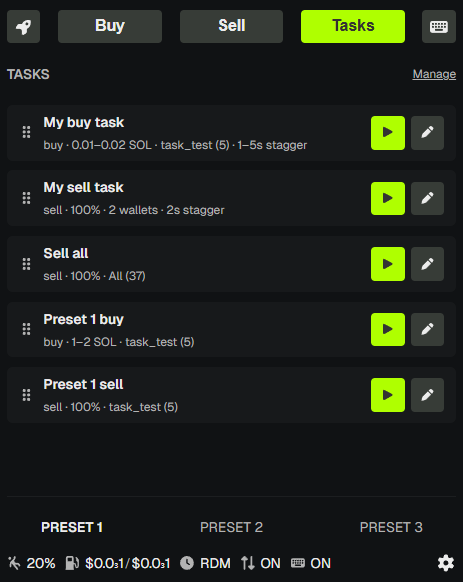
In the Trade Panel, find the TASKS section. Click Manage to open the Tasks Manager (Tasks | Presets tabs).
Overview
Tasks let you define reusable buy, sell, or Global Fee actions with specific wallet selection, amount or fee budget settings, and optional stagger intervals. Run a task with one click instead of configuring each trade manually. Tasks are ideal for repeated workflows like "Quick buy 0.1–0.5 SOL on All wallets", "Sell 50% from Sniper preset with 2s stagger", or a Global Fee run with a shared priority fee budget.
Tasks vs Hotkey Trading
| Tasks | Hotkey Trading | |
|---|---|---|
| Trigger | Click Run on a task | Keyboard shortcut |
| Configuration | Per-task (name, wallets, amounts or fee budget, interval) | Global (min/max amounts, presets) |
| Use case | Named, repeatable workflows | Fast hands-free execution |
Both respect your Trade Settings.
Creating a Task
- Click Manage in the TASKS section.
- In the Tasks tab, click + (New task).
- Enter a name (e.g., "Quick buy 0.1 SOL").
- Choose Buy, Sell, or Global Fee.
- Configure wallet selection (see below).
- Set amounts or budget:
- Buy – min and max SOL per wallet.
- Sell – fixed % or min–max % range.
- Global Fee – Global Fees amount (SOL) is the total priority fee budget for the task (allowed range 0.0001–1 SOL). Each wallet that runs executes a fixed 0.0001 SOL buy; the budget is split equally across those wallets as priority fees. Transactions use the standard priority-fee path (not Jito tips).
- Optionally set interval (manual or random stagger between transactions).
- Save.
Wallet Selection
Tasks support four modes:
Default
Built-in filters resolved at execution time:
- All – Dev + all trade wallets.
- Dev – Dev wallet only.
- Trade – All trade wallets.
- Page – Wallets on the current page.
- Tokens – Wallets that hold the monitored token.
- No Tokens – Wallets with SOL but no tokens.
- Empty – Wallets with no SOL and no tokens.
Preset
Select one or more Wallet Presets. Wallets in those presets are used when the task runs.
Custom
Pick individual wallets from Dev and Trade wallets.
Random
Set min and max wallet count. PumpKit randomly selects that many wallets from the eligible pool (wallets that can perform the action).
Amounts and Global Fee
- Buy – Min and max SOL per wallet. Each wallet gets a random amount in that range (capped by max buy).
- Sell – Fixed % (e.g., 50%) or min–max % range (e.g., 25–75%). Each wallet gets a random % in the range.
- Global Fee – Enter the total SOL you want spent as priority fees across the run. It is not held in your account as a balance line item: it is paid to the network (validators) when transactions execute and is not refundable. The in-app helper text matches: 0.0001 SOL buy per wallet; this budget is paid as priority fees (validators), not refundable—split equally across wallets that run.
Stagger Interval
Control delay between transactions when running a task:
- Disabled – All trades execute in parallel (or as bundles).
- Manual – Fixed delay (e.g., 2 seconds) between each transaction.
- Random – Random delay between min and max seconds (e.g., 1–5s).
Intervals apply only to non-bundle execution. See Trade Panel for execution modes.
Task Presets
Task Presets are reusable task templates. Create them in the Presets tab of the Tasks Manager.
- Create preset – Define name, action (Buy, Sell, or Global Fee), wallet selection, amounts or global fee budget, and interval.
- Create task from preset – Turn a preset into a new task with one click.
- Save task as preset – Save an existing task as a preset for reuse.
Task presets are separate from Wallet Presets. Wallet presets define which wallets; task presets define the full task configuration.
Managing Tasks
- Run – Click the play button on a task to execute it.
- Edit – Click the pen icon to modify the task.
- Hide – Hide a task from the panel (it stays in the Tasks Manager).
- Save as preset – Save the task configuration as a preset.
- Delete – Remove the task.
- Reorder – Drag tasks to change their order in the panel.
Requirements
- Token must be monitored – Use Token Search first.
- Wallets selected – Ensure your task's wallet selection resolves to at least one wallet with sufficient balance.
Tasks execute immediately when you click Run. Ensure amounts and slippage in Trade Settings are correct.
💡 Notes & Tips
- Use Default wallet selection (All, Page, Tokens, etc.) so tasks adapt to your current wallet setup.
- Stagger intervals help make on-chain activity look more natural.
- Task presets are useful for templates you reuse often.