Wallet Presets
Save and load wallet selections as presets. Quickly switch between different wallet groups for trading, warmup, or dispersion.
Access
- Save: Select wallets, then click Save (or +) in the Quick Selection area.
- Edit: Click the ☰ bars icon next to Quick Selection to manage presets.
Overview
Wallet Presets let you save your current wallet selection and reuse it later. Instead of manually selecting wallets each time, load a preset with one click or a keyboard shortcut.
The Quick Selection bar has two dropdowns:
- Select - Built-in filters (All, Dev, Trade, Page, Tokens, No Tokens, Empty) to quickly select wallets.
- Preset - Your saved custom presets. Click to load a preset (selects those wallets) or use C+1–9 and C+0 (for preset 10) hotkeys.
Creating a Preset
From the Wallets Panel (existing wallets):
- Select the wallets you want (Dev, Trade, or both) using the Wallets Panel.
- Click Save (or +) in the Quick Selection area.
- Enter a name (e.g., "Sniper 1-5", "Dev + Main").
- Choose a color label from the preset palette (Blue, Green, Amber, Red, Violet, Pink, Cyan, Orange, Lime, Indigo). Colors help you quickly identify presets in the dropdown and on wallet labels.
- Confirm - the preset is saved.
During wallet creation:
When creating new wallets in the Wallet Manager, you can assign them to a preset in the same step. In the Create Wallets modal, use Assign to preset to add new wallets to an existing preset or create a new preset with the new wallets. See Wallet Manager → Creating Wallets for details.
During wallet import:
When importing wallets in the Wallet Manager, you can assign them to a preset in the same step. In the Import Wallets modal, use Assign to preset to add imported (or restored) wallets to an existing preset or create a new preset. See Wallet Manager → Importing Wallets for details.

Loading a Preset
- Click the preset in the Preset dropdown.
- Keyboard: Hold the C key (letter C, not Ctrl) and press 1–9 for presets 1–9, or 0 for preset 10.
When Focus mode is off, loading a preset selects those wallets for trading. When Focus mode is on, clicking a preset filters the display to show only those wallets (no selection) — use the Select dropdown to choose which of the displayed wallets to trade.
Focus Mode
Toggle Focus mode (crosshairs icon) to change how presets behave:
- Off - Presets select wallets. Click a preset to select all wallets in it.
- On - Presets filter the display. Click a preset to show only those wallets. No preset selected = all wallets hidden until you pick one. Use the Select dropdown (All, Page, etc.) to select from the displayed set.
Focus mode is useful when you have many wallets and want to work only with a subset. The dev wallet is always included in the display when available.
Managing Presets
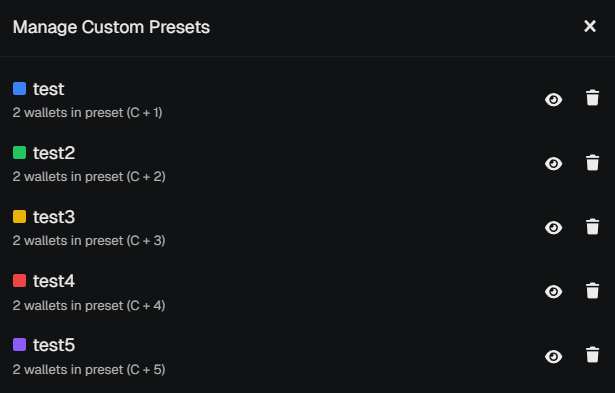
- Edit - Click the bars icon (☰) to open the Quick Selection manager.
- Rename - Change a preset's name.
- Delete - Remove a preset.
- Visibility - Show or hide preset buttons in the Quick Selection bar.
- Color - Each preset has a color label. Colors appear in the Preset dropdown, in the Manage Presets modal, and on wallet labels in the Wallets Panel and Wallet Manager when a wallet belongs to a preset.
Presets are saved to your account. Up to 10 presets can be created, each with a hotkey: C+1 through C+9 for presets 1–9, and C+0 for preset 10.
Use Cases
- Sniper groups - Different wallet sets for different launch strategies.
- Warmup - Preset for wallets you're warming.
- Dispersion - Preset for wallets you're funding.
- Trading - Quick switch between "aggressive" vs "conservative" wallet sets.
Preset Colors
When creating or updating a preset, you choose a color from the palette. Colors help you:
- Preset dropdown - Each preset shows its color swatch next to the name.
- Quick Selection manager - Preset colors appear in the manage modal.
- Wallets Panel - Wallet labels (W1, W2, Dev, etc.) use the preset color when that wallet belongs to a preset.
- Wallet Manager - Preset colors appear in the Type column for quick identification when filtering by preset.
Available colors: Blue, Green, Amber, Red, Violet, Pink, Cyan, Orange, Lime, Indigo.
💡 Notes & Tips
- Presets are saved to your account - they persist across sessions.
- Preset 1 = C+1, Preset 2 = C+2, … Preset 9 = C+9, Preset 10 = C+0. Order matters for hotkeys.
- Hide presets you rarely use to keep the UI clean.
- Presets work with Hotkey Trading - load a preset, then hotkey trades use those wallets.
- In Focus mode, hotkey trading and Auto EZ respect the display filter — only wallets in the active preset are traded.