Wallets Panel
Monitor each wallet balance and PnL in real-time. Includes Holders for the active token, quick filtering, wallet selection, and fast trade execution.
Wallet View
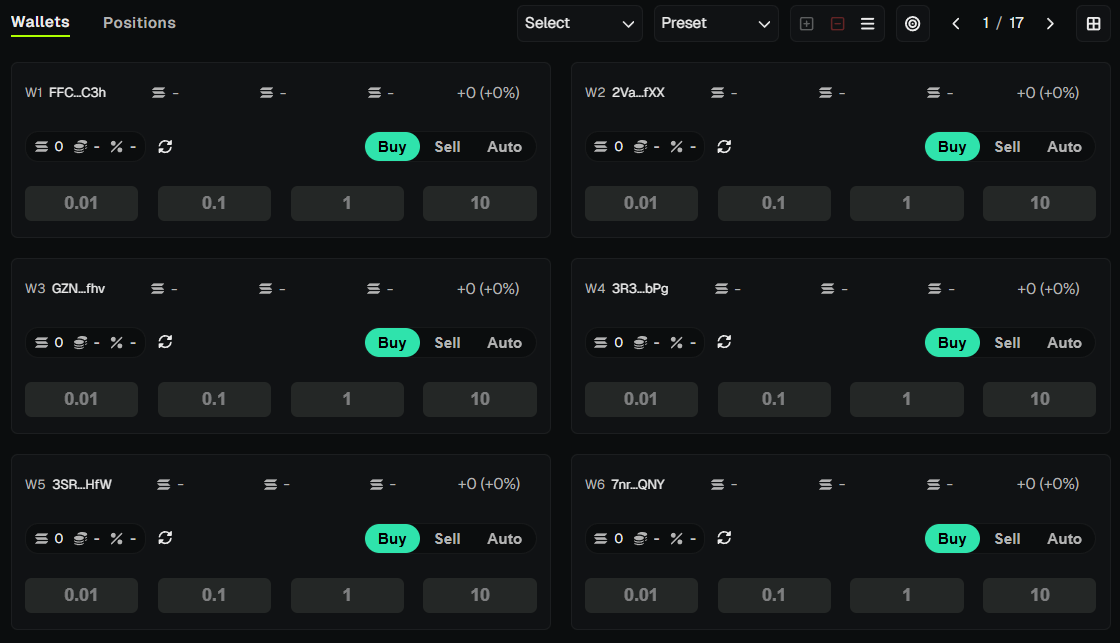
- Full View (Grid) - Shows up to 6 wallets per page (5 when Dev wallet is on the first page) with detailed info and quick action buttons.
- List View - Table-like rows with wallet data, Bought/Sold/Holding/PnL columns, and quick trade buttons. Good for scanning many wallets at once.
- Compact View - Displays up to 100 wallets in a dense grid for large setups.
Switch views by clicking the view icon (cycles Grid → List → Compact) or use Shift + V.
Wallets, Positions & Holders
- Wallets - Wallet cards or rows (depending on view) with balances and quick actions.
- Positions - View of open positions across wallets for the active token. See Positions for details.
- Holders - Top holders of the active token (when you are monitoring one). See Holders below.
The live transaction feed lives in its own panel below the trade area - see Live Trades.
Quick Selection Filters
At the top of the panel, you’ll find filters to quickly locate and select wallets:
- All - Select all wallets.
- Dev - Select only the Dev Wallet.
- Trade - Select all Trade Wallets.
- Page - Select wallets on the current page (Shift + P).
- Tokens - Select trade wallets that currently hold tokens.
- No Tokens - Select trade wallets with SOL but no tokens.
- Empty - Select trade wallets with no SOL and no tokens.
Click the ☰ bars icon next to Quick Selection to manage Wallet Presets (show/hide, delete). Each preset has a color label that appears on wallet cards (W1, W2, etc.) when that wallet belongs to a preset.
Wallet Selection
- Click on a wallet card to select/deselect it for trading.
- Selected wallets will participate in Buy/Sell operations depending on your chosen execution mode (parallel, bundles, or interval).
You can also select wallets in bulk using the quick selection filters.
Wallet Data
Each wallet card displays:
- Shortened Wallet Address
- SOL Balance
- Token Balance
- Supply % (share of token supply held)
- Bought / Sold / Holding / PnL stats for tracked tokens
This provides a complete overview of each wallet’s trading performance.
Quick Actions
In Full View and List View, wallets include action buttons for instant trades:
- Refresh Button - Updates the wallet’s balance data instantly.
- Quick Buy/Sell Buttons - Execute preset trades immediately.
- These use values from your Buy/Sell tabs.
Use quick actions carefully - they don’t ask for confirmation.
Holders Tab
Available in the Wallets Panel when a token is monitored. Top holders of the token:
- Wallet - Holder address.
- Worth - Value in SOL or USD. Click the header to toggle.
- Balance - Token amount held.
- Hold (%) - Percentage of supply.
Actual vs Spot - The footer can show YOU vs Outsider summary. Toggle Actual (includes price impact) or Spot (no impact) for value calculation.
Holders summary (footer) when a token is monitored:
- YOU - Your combined wallet hold % and worth (SOL).
- Outsider - Combined outsider hold % and worth.
Toggle Actual (real sell value with impact) or Spot (simple price × amount) for the worth calculation. Actual is more accurate for large sells (includes slippage).
💡 Notes & Tips
- Use Full View for precision and detailed wallet control.
- Use List View to scan many wallets in a table layout with Bought/Sold/Holding/PnL columns.
- Use Compact View to manage many wallets at once (up to 100).
- Always double-check Buy/Sell presets before using Quick Action buttons.
- Refresh balances if you move funds outside PumpKit to keep amounts accurate.
- Combine filters with bundles or intervals for faster, more strategic execution.
- Holders counts may lag slightly - they are derived from on-chain data.