Trade Panel
Execute buys and sells across your wallets. PumpKit supports quick trades, bundles, parallel trades, and interval jobs for flexible execution.
Layout
The Trade Panel has five main areas in the tab bar (left to right):
- Create (rocket icon) – Launch new tokens on Pump.fun or Bonk.fun. See Clone Token for cloning existing tokens.
- Buy – Execute buy orders across selected wallets.
- Sell – Execute sell orders across selected wallets.
- Tasks – Create and run named buy, sell, or global-fee tasks. See Manual Tasks.
- Hotkey (keyboard icon) – Execute trades with keyboard shortcuts. Includes EZ Mode automation. See Hotkey Trading.
Settings Bar
Below the tab content, a bar shows your current settings and toggles:
- Preset 1 / 2 / 3 – Switch presets (or Shift + 1, Shift + 2, Shift + 3).
- Slippage, Fees, Interval, Auto-Sell, Hotkey – Read-only display of current values.
- SNIPE – Toggle (Create tab only). Include sniper wallets in the launch.
- BUNDLE – Toggle (Buy/Sell tabs only). Combine up to 5 wallets per transaction.
- Gear icon – Open Trade Settings to customize.
Quick Setup
- Start monitoring a token (via Token Search).
- Select which wallets to use (Dev Wallet and/or Trade Wallets).
- Switch to Buy or Sell. Use the BUNDLE toggle (Buy/Sell tabs) to combine up to 5 wallets into one transaction. Use the SNIPE toggle (Create tab) to include sniper wallets in the launch.
- Enter your amount:
- Buy - exact SOL amount or % of total SOL balance.
- Sell - % of total token balance.
- Click Buy / Sell to execute the trade.
Create Tab
Launch new tokens on Pump.fun or Bonk.fun. Enter metadata (name, symbol, image, socials), select launchpad and mode, choose wallets and buy amounts, then deploy. Set Dev buy amount (dev wallet) and Snipe buy amount (sniper wallets). Use SNIPE in the settings bar to include sniper wallets in the launch. Use Clone to copy metadata from an existing token. See Clone Token for cloning.
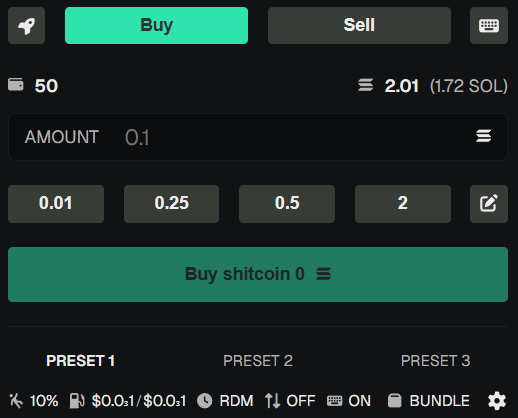
Buy Tab
- Amount Input - enter the SOL amount to spend, or % of selected wallet balances.
- Buy Amount Presets - customizable quick buttons. Click the edit control to change SOL amounts and buy %. They only fill the input (no instant execution).
- Percentage Mode - switch input to % of wallet balance.
- Execution - the final Buy button displays the total SOL that will be spent.
Sell Tab
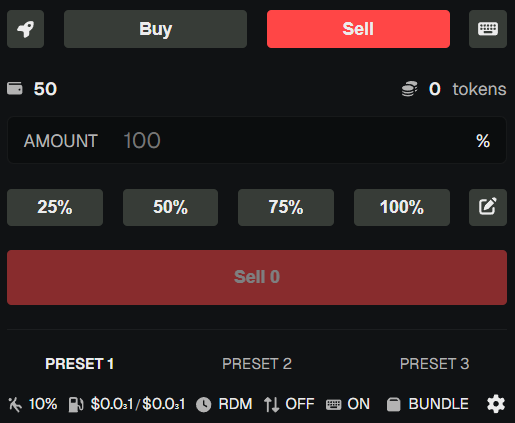
- Amount Input - enter the % of token balance to sell.
- Sell Amount Presets - quick buttons (25%, 50%, 75%, 100%). Click the edit control to customize. They only set input, not execute.
- Execution - the final Sell button shows how many tokens will be sold.
Tasks
Create named buy, sell, or global-fee tasks with wallet selection, amount ranges or priority fee budgets, and stagger intervals. Click Manage in the TASKS section to create, edit, and run tasks. See Manual Tasks for details.
Hotkey Panel
Execute buys and sells with keyboard shortcuts. Configure min/max amounts and wallet presets, then trigger trades without clicking. Supports Manual mode (per-press), Random mode (auto interval), and EZ Mode automation. See Hotkey Trading for shortcuts and setup.
Trade Execution Modes
Parallel Trades
Executes trades across wallets simultaneously.
- ✅ Multiple wallets selected
- ❌ Intervals disabled
- ❌ Bundle Mode not active
Best for speed; works well with Auto Tips.
Bundles (≤5 Wallets)
Combines up to 5 wallets into one transaction.
- ✅ Bundle Mode enabled
- ✅ 5 wallets or fewer selected
Efficient and fee-saving.

Parallel Bundles (>5 Wallets)
Splits wallets into groups of 5 and executes bundles in parallel.
- ✅ Bundle Mode enabled
- ✅ More than 5 wallets selected
Increase slippage for large trades to avoid failures.
Interval Jobs
Executes trades sequentially with delays between transactions.
- ✅ Intervals enabled (Manual or Random)
- When intervals are enabled, trades run sequentially; bundle mode is not used.
Great for staggering trades and avoiding obvious on-chain patterns. See Trade Settings for interval customization.
Results
- Balances update instantly in Dashboard and Wallets Panel.
- PnL and holdings update in Price Monitor.
- Failed trades show an error so you can retry with adjusted settings.
💡 Notes & Tips
- Bundles = efficiency (lower fees, fewer txs).
- Parallel = speed (each wallet sends its own tx).
- Use priority fees + Jito tips for competitive trades.
- Keep slippage balanced - too low = failed trades, too high = bad fills (adjust in Trade Settings).